



beta 0.1.0X11 window managerMIT (X11)

An X11 window manager with vertical tabs, and nothing else in the way. ウィンドウの左に縦のタブ。
それだけの、X11 のウィンドウマネージャー。

wm2tj is a minimal window manager for X11, based on wm2 (1997). Every window gets a glossy tab on its left edge and a thin black frame. It keeps wm2's lightness and restraint, and adds only what it takes to use an old or low-powered laptop every day: UTF-8 titles, maximise and minimise, EWMH, virtual desktops and a top bar drawn in the same style. wm2tj は、1997 年の wm2 をもとにした X11 用のミニマルなウィンドウマネージャーです。ウィンドウの左に光沢のある縦のタブ、まわりに細い黒い枠。その軽さと割り切りはそのままに、日本語のタイトル、最大化と最小化、EWMH、仮想デスクトップ、同じ見た目のトップバーなど、低スペックのノート PC を毎日の道具にするのに要るものだけを足しました。

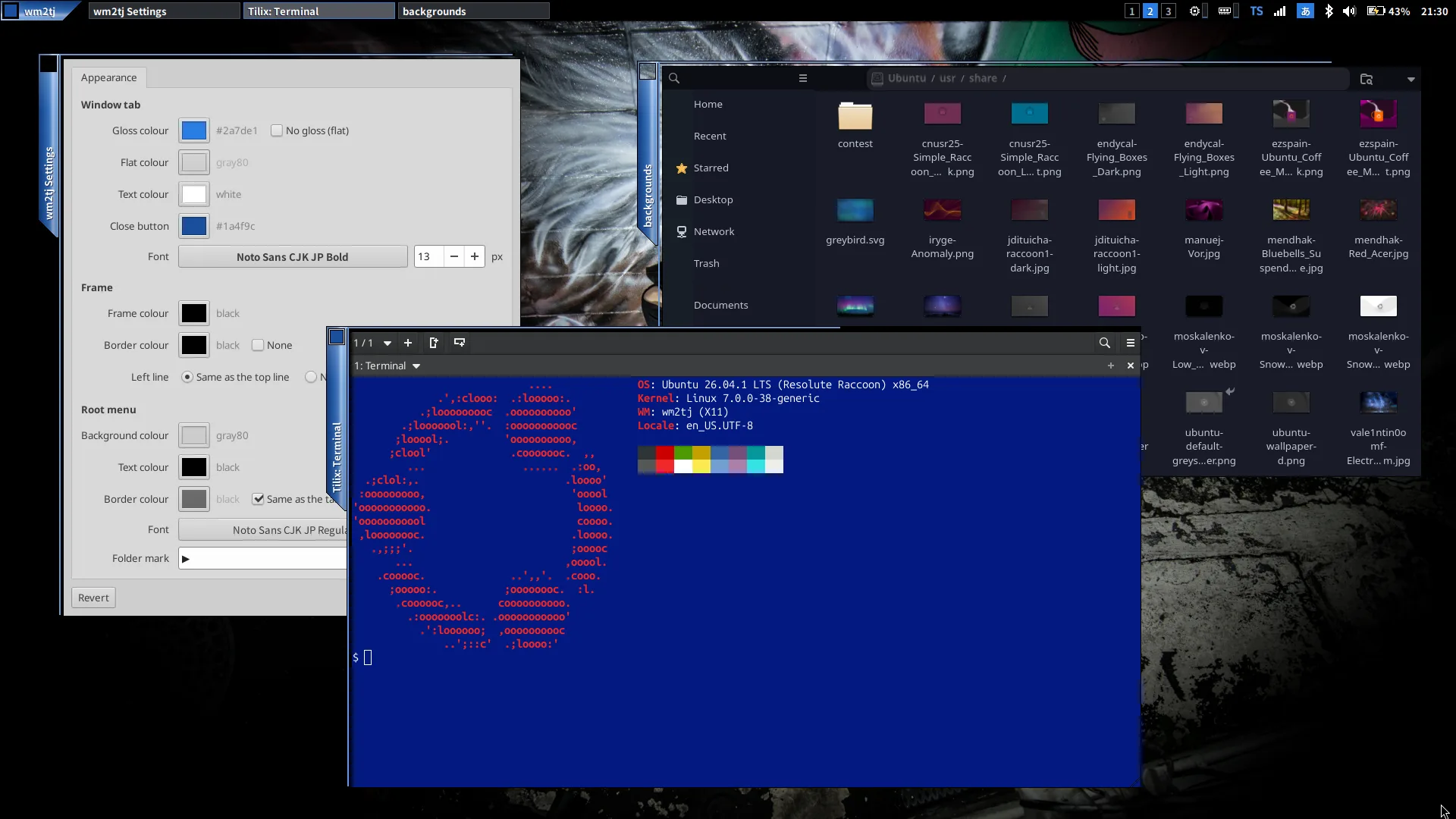
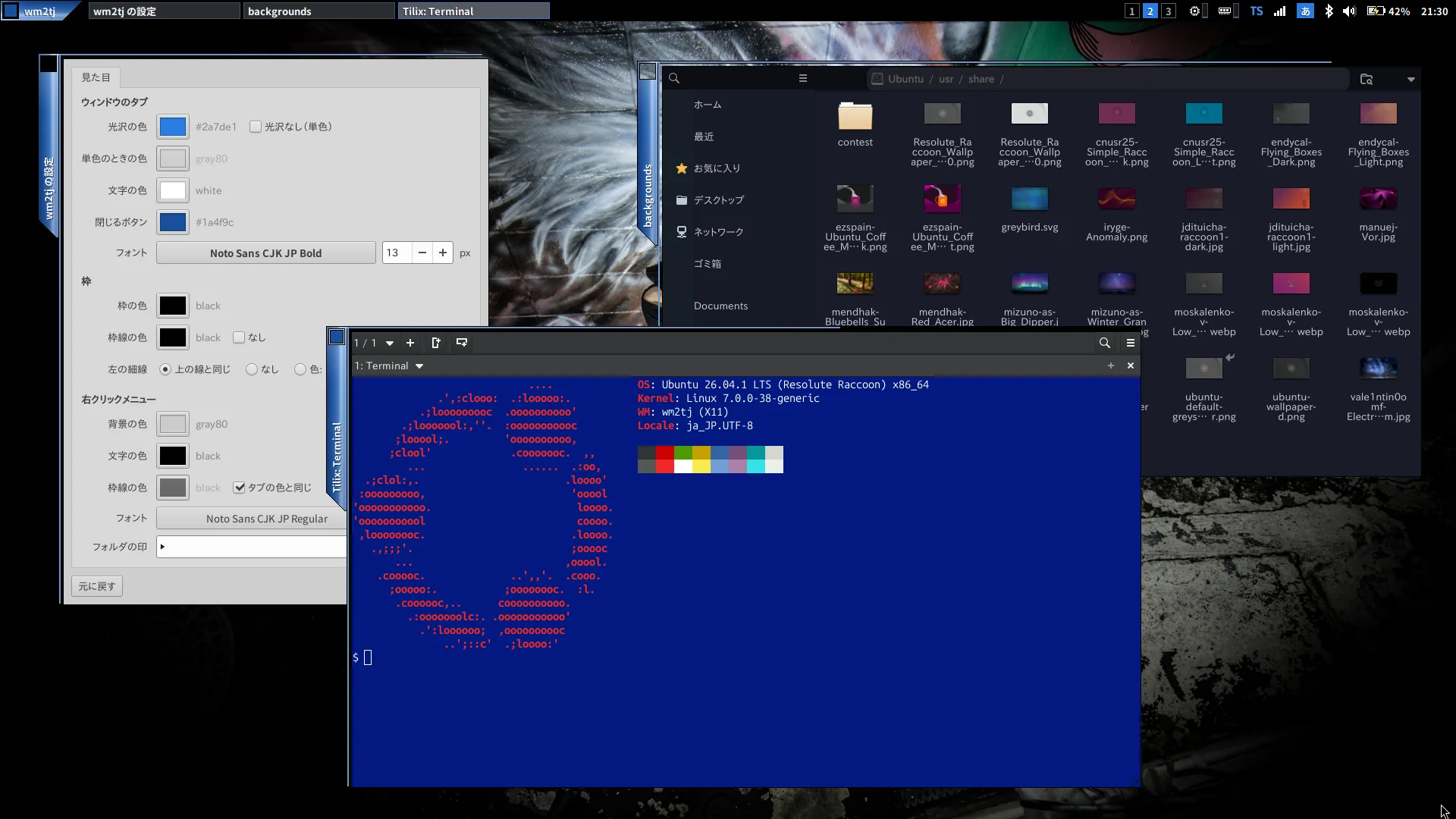
wm2tj desktop: the settings window, a file manager and a terminal, each with a blue vertical tab on its left, under the wm2tj-bar top bar wm2tj のデスクトップ。設定画面・ファイルマネージャー・端末にそれぞれ青い縦のタブが付き、上に wm2tj-bar がある
1920 × 1080, unretouched. wm2tj Settings, Files and Tilix on desktop 2 of 3. 1920 × 1080、無加工。3 つあるデスクトップの 2 番目で、wm2tj の設定・ファイル・Tilix を開いたところ。
What it isどんなものか

The 1997 look, kept. Light enough for a low-powered laptop.1997 年の見た目のまま、低スペックのノート PC で毎日使える。

wm2 moved, stacked and closed windows, and did very little else. wm2tj keeps that. Everything added is either something you reach for every day or something the rest of the desktop expects from a window manager today. wm2 は、ウィンドウを動かす・重ねる・閉じる以外はほとんど何もしない WM でした。wm2tj もそこは変えていません。足したのは、毎日手を伸ばす操作と、今のデスクトップのアプリが WM に期待していることだけです。

Language言語
C++ · Xlib
Text文字
Xft · UTF-8
Standards規格
EWMH · XEmbed
Licenceライセンス
MIT (X11)

Vertical tabs, untouched縦のタブはそのまま

The title sits in a tab on the window's left side, read bottom to top, with a close button at the end and a slanted cut where it meets the frame.タイトルはウィンドウ左側のタブに縦書きで。先端に閉じるボタン、枠とつながる側は斜めの切り口。wm2 の形のままです。

Titles in any script日本語のタイトル

Tab labels are drawn with Xft and UTF-8, so Japanese, Chinese and other non-Latin titles show as they are.タブの文字は Xft と UTF-8 で描画。日本語のタイトルが縦のタブにそのまま出ます。

Maximise and minimise最大化と最小化

Double-click a tab to maximise or restore. Middle-click (or a three-finger tap) to minimise. Requests from applications for maximised or fullscreen windows are honoured.タブのダブルクリックで最大化と復元、中クリック (タッチパッドは 3 本指タップ) で最小化。アプリからの最大化・全画面の要求にも従います。

Plays well with panelsパネルと連携 (EWMH)

EWMH support for taskbars, pagers, docks and struts. Virtual desktops, and maximised windows that stay clear of the bar.タスクバー・ページャー・ドックと連携。仮想デスクトップ、バーを避ける最大化、ドックやメニューのウィンドウの扱い。

A root menu that searches検索できる右クリックメニュー

Right-click the desktop for favourites and application folders that open sideways. Type to filter every app and open window. Works with an input method.お気に入りと、横に開くアプリのフォルダ。先頭の検索欄で全アプリと開いているウィンドウを絞り込み。カナの名前はローマ字でも見つかり、日本語入力でも打てます。

One small config file設定はファイル 1 つ

~/.wm2rc sets tab width and length, gloss colour, borders and fonts. Send SIGHUP to reload in place, with every window kept where it was.~/.wm2rc でタブの太さと長さ・光沢の色・枠・フォント。SIGHUP で同じプロセスのまま読み直し、ウィンドウもデスクトップもそのまま。

Using it使い方

Everything is done with the mouse, on the tab.操作はマウスで、タブに対して行います。

As in wm2 there are no keyboard bindings. The same list is in man wm2tj.wm2 と同じく、キーボードショートカットはありません。同じ一覧が man wm2tj にもあります。

Left-drag the tabタブを左ドラッグMove the window. A click raises and focuses it.移動。クリックだけなら前面に出してフォーカス。
Double-click the tabタブをダブルクリックMaximise, or restore.最大化 ⇔ 復元。
Middle-click the tabタブを中クリックMinimise. On a touchpad, a three-finger tap. Bring it back from the top bar's task list or from the open-windows list in the root menu.最小化。タッチパッドは 3 本指タップ。戻すのはトップバーのタスク一覧か、右クリックメニューの「開いているウィンドウ」から。
The square at the end of the tabタブ先端の四角Close the window.閉じる。
Left-drag the bottom-right corner枠の右下を左ドラッグResize.サイズ変更。
Left-click the desktop背景を左クリックCycle through the windows.ウィンドウを順に切り替え。
Right-click the desktop背景を右クリックThe root menu: favourites, application folders, the open windows, restart / log out / shut down. Type to search.メニュー。お気に入り、アプリのフォルダ、開いているウィンドウ、再起動・ログアウト・シャットダウン。文字を打つと検索。
Top bar: desktop numbersトップバーのデスクトップ番号Click or scroll to switch desktops. Click a running app to raise it; click the front one to minimise it.クリックかスクロールでデスクトップ切替。起動中のアプリはクリックで前面、前面のものをクリックすると最小化。
Screenshotsスクリーンショット

On a real laptop, in both languages.実機の画面を、英語と日本語で。

Switch the page language at the top and the screenshots switch too: the same desktop, run once with an English and once with a Japanese locale.ページ上部で言語を切り替えると、スクリーンショットも切り替わります。同じデスクトップを、英語と日本語のロケールでそれぞれ撮りました。

The root menu右クリックメニュー

Favourites on top, then application folders built from your .desktop files, then restart, log out and shut down. Folders cascade to the side.上にお気に入り、その下に .desktop ファイルから作ったアプリのフォルダ、最後に再起動・ログアウト・シャットダウン。フォルダは横に開きます。

The favourites are shared with the top bar's menu, so editing one updates the other.お気に入りはトップバーのメニューと共有。片方で変えるともう片方にも反映されます。

Settings, if you'd rather not edit a fileファイルを触りたくなければ設定画面で

wm2tj-settings writes ~/.wm2rc for you and applies it at once, to the window tabs and the bar together.wm2tj-settings が ~/.wm2rc を書き、その場で反映します。ウィンドウのタブとバーの両方に。

wm2tj-bar

A top bar that is a tab, laid on its side.トップバーは、タブを横に倒したもの。

The left end of the bar is drawn from the same ~/.wm2rc settings as the window tabs: width, gloss, border, button and slanted end. Press its button for the app menu. The rest of the bar replaces a panel and a power manager.バーの左端は、ウィンドウのタブと同じ ~/.wm2rc の設定 (太さ・光沢・縁取り・ボタン・斜めの切り口) で描いています。ボタンを押すとアプリのメニュー。残りの部分でパネルと電源管理の役目をまとめて引き受けます。

Left end of wm2tj-bar: the tab-shaped menu button and the running applications wm2tj-bar の左端。タブの形のメニューボタンと起動中のアプリ
Right side of wm2tj-bar: desktops 1 to 3, CPU, memory, tray, Wi-Fi, input method, Bluetooth, volume, battery and clock wm2tj-bar の右側。デスクトップ 1〜3・CPU・メモリ・トレイ・Wi-Fi・入力メソッド・Bluetooth・音量・電池・時計

Actual pixels, enlarged. The bar is 28 px tall.実際のピクセルを拡大して表示 (バーの高さは 28 px)。

Apps, tasks, desktopsアプリ・タスク・デスクトップ

Favourites, apps by category in your language, and the session menu. Running windows on the current desktop; click to raise, click again to minimise. Numbered desktops, click or scroll to switch.お気に入り、その言語の名前で並ぶカテゴリ別のアプリ、セッションのメニュー。今のデスクトップで開いているウィンドウ (クリックで前面、もう一度で最小化)。番号のデスクトップはクリックかスクロールで切り替え。

Wi-Fi with its own password boxWi-Fi はパスワード入力まで自前で

Pick a network from the menu and type the password in the bar itself. It goes to nmcli on standard input and never shows in ps. No applet needed.メニューからネットワークを選び、パスワードもバーの画面で入力。nmcli には標準入力で渡すので ps に出ません。アプレット不要。

Sound, Bluetooth, input method音量・Bluetooth・入力メソッド

Scroll to change the volume, pick the output, connect paired devices. The IME indicator follows fcitx5, IBus or plain XKB layouts.スクロールで音量、出力先の切り替え、ペアリング済み機器のつなぎ外し。入力メソッドの表示は fcitx5・IBus・XKB に対応。

Battery and power電池と省電力

Brightness and volume keys, power profiles that switch when you plug in or unplug, and screen blanking. It does the job of xfce4-power-manager.明るさキー・音量キー、電源のつなぎ外しで切り替わる省電力モードと画面を消すまでの時間。xfce4-power-manager なしで済みます。

Reads the kernel, not commandsコマンドを呼ばず、カーネルから直接

CPU, memory, Wi-Fi, Bluetooth and battery come straight from /proc and /sys. Plain C and Xlib, one process, a system tray built in.CPU・メモリ・Wi-Fi・Bluetooth・電池は /proc と /sys から直接読みます。C と Xlib だけの単体プロセスで、システムトレイも内蔵。

Works with other window managersほかの WM とも組み合わせ可

The bar is a separate program and a separate package. It talks to the window manager through EWMH properties only, so it should run under any EWMH-compliant WM. English UI with a Japanese translation.バーは別のプログラムで、パッケージも別です。WM とのやりとりは EWMH のプロパティだけなので、EWMH 対応のウィンドウマネージャーなら組み合わせて使えるはずです。画面の文字は英語が元で、日本語訳つき。

Configuration設定

Change the gloss, keep everything else.光沢の色だけ変えて、あとはそのまま。

Pick a colour below to see what tab_gloss does to a tab. none brings back the flat grey tab of the original wm2.下の色を選ぶと、tab_gloss でタブがどう変わるか見られます。none にすると元の wm2 の灰色の平らなタブに戻ります。

~/.wm2rc
font              "Noto Sans CJK JP:style=Bold:pixelsize=13"
desktops          3
tab_length        220      # 0 = fit the title
tab_width         32
tab_gloss         "#2a7de1"
tab_foreground    white
button_background "#1a4f9c"
borders           black
new_window        xfce4-terminal

# reload without restarting
$ pkill -HUP -x wm2tj

A browser sketch of the tab, not a screenshot. The real one is drawn by Xlib.ブラウザで描いたタブの見本です (スクリーンショットではありません)。本物は Xlib が描きます。

Installインストール

Build it from source.ソースからビルドします。

Debian and Ubuntu get .deb packages from the Releases page. Everything else builds with make in a few seconds.Debian と Ubuntu は Releases の .deb で入ります。それ以外はソースから make で数秒でビルドできます。

⬇

Debian / Ubuntu: the packagesDebian / Ubuntu はパッケージで

Two packages, and either works without the other: wm2tj (the window manager, the session and the helpers) and wm2tj-bar (the bar). The line below installs both. For the window manager alone, install only wm2tj_*.deb: the session then starts xfce4-panel if it is there, or runs with no bar at all. For the bar alone, under another EWMH window manager, install only wm2tj-bar_*.deb.パッケージは 2 つで、片方だけでも使えます。wm2tj (ウィンドウマネージャー・セッション・補助ツール) と wm2tj-bar (バー)。下の 1 行で両方入ります。ウィンドウマネージャーだけなら wm2tj_*.deb だけを入れてください (セッションは xfce4-panel があればそれを、無ければバーなしで起動します)。バーだけを別の EWMH 対応 WM で使うなら wm2tj-bar_*.deb だけで。

sudo apt install ./wm2tj_*.deb ./wm2tj-bar_*.deb

Or build from sourceソースから入れる場合

1

Install the build dependenciesビルドに要るものを入れる

sudo apt install g++ gcc make pkg-config libx11-dev libxext-dev libxft-dev gettext picom
2

Build and installビルドしてインストール

One make at the top builds the window manager, the bar and the helpers; make install puts them under /usr/local with the man pages and a "wm2tj" entry in your login screen's session list. The two parts are independent: for the window manager alone use make -C wm && sudo make -C wm install-session, for the bar alone make -C bar && sudo make -C bar install.トップの make 一発でウィンドウマネージャー・バー・補助ツールがビルドされ、make install で /usr/local に man ページとログイン画面のセッション一覧の「wm2tj」ごと入ります。本体とバーは独立しているので、ウィンドウマネージャーだけなら make -C wm && sudo make -C wm install-session、バーだけなら make -C bar && sudo make -C bar install で片方だけ入れられます。

git clone https://github.com/wm2tj/wm2tj.git && cd wm2tj
make && sudo make install
3

The extras, in your home directory instead (optional)補助ツールをホーム以下に入れる場合 (任意)

The menu generator, the settings and favourites editors, the power dialog, the logout helper and the wallpaper setter are already installed by the step above. To keep them (or a newer copy) under your own home directory:メニューの生成、設定とお気に入りの編集画面、電源ダイアログ、ログアウト、壁紙の設定は上の手順で一緒に入ります。自分のホーム以下だけに置きたい (または新しい版を試したい) ときは:

make -C wm/extras install PREFIX=$HOME/.local
4

Log out and pick “wm2tj”ログアウトして「wm2tj」を選ぶ

The session script starts what it finds: an input method, picom, a settings daemon, a polkit agent, a notification daemon and the bar.セッションのスクリプトが、入っているものだけを起動します。入力メソッド、picom、設定デーモン、polkit エージェント、通知デーモン、バー。

Status現状

Beta, and honest about it.ベータ版です。

wm2tj is in daily use on low-powered laptops. The author's own machines are an NEC LAVIE NM350 and a 12-inch Apple MacBook, both running Xubuntu with wm2tj as the only desktop. Here is what has and has not been tried.低スペックのノート PC で毎日使っています。作者が今使っているのは NEC LAVIE NM350 と Apple MacBook 12 インチで、どちらも Xubuntu に wm2tj を入れて毎日の道具にしています。確かめたこと、まだのことは次のとおりです。

Tested確認済み

  • Runs daily on Xubuntu-based systems (GCC, X11 with picom)Xubuntu 系で毎日使用 (GCC、X11 + picom)
  • Builds warning-free (-Wall -Wextra) on Debian stable, Ubuntu 24.04, Fedora, Arch and Alpine (musl, GCC and clang)Debian stable・Ubuntu 24.04・Fedora・Arch・Alpine (musl、GCC と clang) で警告なしにビルドできることを確認
  • fcitx5 and IBus input methods, Japanese titles and menusfcitx5・IBus、日本語のタイトルとメニュー
  • Wi-Fi (NetworkManager), Bluetooth, PipeWire / PulseAudio volume, batteryWi-Fi (NetworkManager)・Bluetooth・PipeWire / PulseAudio の音量・電池

Not yetまだのこと

  • Only run on Xubuntu so far; the other distributions above are build-tested only. NixOS, Void and Gentoo are untested実際に動かしたのは Xubuntu だけで、上のほかのディストリはビルドまで。NixOS・Void・Gentoo は未確認
  • Volume needs wpctl or pactl; plain ALSA is not supported音量には wpctl か pactl が要ります (ALSA だけの環境は未対応)
  • No WPA-Enterprise, no StatusNotifierItem tray, single screen only, and no Latin-1 WM_NAME from very old applicationsWPA-Enterprise、StatusNotifierItem のトレイ、複数スクリーン、古いアプリの Latin-1 の WM_NAME は未対応
Why it existsなぜ作ったか

A long-time fan's fork.長年のファンによるフォーク。

wm2 was written by Chris Cannam around 1997: vertical tabs, thin frames, no icons, no config file. Whenever I put Linux on an underpowered machine, I reached for it. I still think it is one of the coolest-looking window managers around.wm2 は Chris Cannam さんが 1997 年ごろに作ったウィンドウマネージャーです。縦のタブと細い枠だけで、アイコンも設定ファイルもありませんでした。非力なマシンに Linux を入れるとき、私はずっと wm2 を使ってきました。今でも、いちばん格好いいウィンドウマネージャーのひとつだと思っています。

Development stopped in 2011, and it could not show Japanese titles, maximise a window or talk to a modern taskbar. In 2026 I started reworking it to fit the way I use a laptop today, without losing what made it good.ただ本家は 2011 年で止まっていて、日本語のタイトルも、最大化も、今のタスクバーとの連携もできませんでした。2026 年に、良さを失わないまま、今のノート PC の使い方に合わせて手を入れ始めました。

The name is wm2 + t (the author, tetsu) + j (Japan), so it is never mistaken for a new release of wm2 itself.名前は wm2 + t (作者のてつ) + j (Japan)。本家の新しい版と間違えられないように、別の名前にしました。